Listings Variations: The Logic
Amazon sellers often need to create product variations to provide customers with multiple options, such as different sizes, colors, or styles, within the same product listing.
This is particularly important for increasing conversion rates by improving customer experience and simplifying inventory management. While manually creating variations might seem simple at first, using flat files allows you to create variations in bulk, saving significant time and reducing errors.
Learning how to use flat files for creating product variations can initially seem complex, but it becomes much more efficient as you get familiar with the process. Not only does it streamline your workflow, but it also makes it easier for Amazon’s support team to assist in case of any issues, thanks to the structured nature of these files.
In this guide, we’ll walk you through each step of creating listing variations with flat files for existing Amazon listings. By following these steps, you’ll be able to efficiently manage your product catalog and ensure all variations are accurately listed.
Why Use Flat Files to Create Amazon Listings Variations?
Time Efficiency
Once you master the process, using flat files allows you to create hundreds of product variations simultaneously, which is significantly faster than manually entering each variation.
Error Reduction
By using flat files, you can ensure greater consistency across your listings. It’s easier to check, correct, and re-upload bulk data compared to making individual updates to multiple listings.
Easier Troubleshooting
Amazon support teams can resolve issues faster when provided with batch-uploaded flat files, as these files follow a structured format that makes identifying and fixing errors more straightforward.
Better Inventory Management
When product variations are grouped into a single parent listing, you get a more organized view of your inventory. Customers can view all variations under one product page, improving their shopping experience.
Now, let's dive into the process of creating these variations using flat files.
Step 1: Download the Flat File Template
To create listings variations for your existing listings, the first step is to download the appropriate flat file template:
- Go to Seller Central → Inventory → Add Products via Upload → Download Spreadsheet.
- Select “List products that are not currently in Amazon’s catalog.”
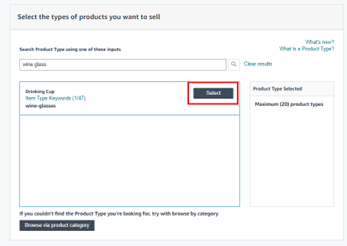
- Use the search box to find the appropriate category for your product by entering relevant keywords like “outdoor lanterns,” “mouse,” or “wine glass.”
Click Select, scroll down, and click Generate Template to download the flat file for your specific category.
Tip: If you already have similar products listed, you can use the Category Listings Report to help fill out the new flat file:
- Go to Reports → Inventory → Category Listings Report.
- Unhide any hidden columns for a complete view of the data.
- Copy the relevant details from similar listings, particularly the “Item Type Keyword,” and paste them into the search box to generate a new flat file.
If the Category Listings Report isn’t available under your account, contact Seller Support to enable it.
Step 2: Fill Out the Flat File
After downloading the flat file, you’ll need to meticulously fill in all the necessary fields. Here’s how to ensure accuracy when filling out the flat file:
- Open the downloaded file and go to the Template tab.
- Unhide all columns: Select the entire sheet (click the box between column A and row 1), right-click, and select Unhide All.
- Use CTRL + F to search for specific listings or attributes that you want to update, add, or delete.
- Select Partial Update in the “update_delete” column if you are only updating a few attributes and not creating a completely new product.
Important: Even in Partial Updates, certain attributes must always be filled in, including:
- Product Type
- Seller SKU
- Brand Name
- Update Delete
- Product Name
- Manufacturer
- Product ID (UPC, EAN, ASIN etc.)
- Product ID Type
- Item Type Keyword
Step 3: Adding the Parent Listing
To create a product family (variations), you need to add a parent listing. The parent listing acts as a placeholder and organizes all the variations together under one product.
- Add a new row in the flat file for the parent listing, similar to how you would for a product.
- Fill in the following attributes for the parent listing:
- Product Type: The same as your variation listings.
- Seller SKU: Create a unique SKU for the parent (e.g., “PurpleHairClip_3_Parent”).
- Brand Name: Use the same brand name as your variation listings.
- Update Delete: Select Update.
- Product Name: Use a general product title without specific variation details (e.g., size or color).
- Item Type Keyword: The same as your variation listings.
Note: You may need to add at least one bullet point and a product description for the parent, but remember, this listing is a placeholder and will not appear as an individual product.
To create a product family (variations), you need to add a parent listing. The parent listing acts as a placeholder and organizes all the variations together under one product.
- Add a new row in the flat file for the parent listing, similar to how you would for a product.
- Fill in the following attributes for the parent listing:
- Product Type: The same as your variation listings.
- Seller SKU: Create a unique SKU for the parent (e.g., “PurpleHairClip_3_Parent”).
- Brand Name: Use the same brand name as your variation listings.
- Update Delete: Select Update.
- Product Name: Use a general product title without specific variation details (e.g., size or color).
- Item Type Keyword: The same as your variation listings.
Note: You may need to add at least one bullet point and a product description for the parent, but remember, this listing is a placeholder and will not appear as an individual product.
Step 4: Completing Variation Columns
For your product variations, specific columns must be filled in to establish the parent-child relationships. Here’s what to fill out:
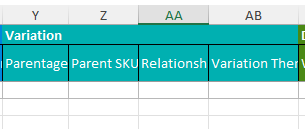
For the Parent Listing, enter:
- Parentage: Enter Parent.
- Variation Theme: Choose the type of variation (e.g., Color, Size, Size and Color).
For the Child Listings (the actual product variations), enter:
- Parentage: Enter Child.
- Parent SKU: Enter the SKU of the parent listing (e.g., “PurpleHairClip_3_Parent”).
- Relationship Type: Select the same variation theme used for the parent listing (e.g., Color or Size).
Step 5: Filling in Variation-Specific Attributes
Based on the variation theme you selected (e.g., size, color), fill out the corresponding columns with the appropriate values. For example:
- If your variation theme is Size, locate the “Size” column in the flat file and enter values like “Small,” “Medium,” “Large.”
- If your variation theme is Color, fill in the “Color” column with values like “Red,” “Blue,” or “Green.”
Step 6: Upload Your Flat File
After completing the flat file, follow these steps to upload it:
- Save the flat file with a descriptive name, such as “[Product_Model]_v1,” to make it easy to find later.
- Navigate to Seller Central → Inventory → Add Products via Upload → Upload Your Spreadsheet.
- Browse for the saved file and upload it.
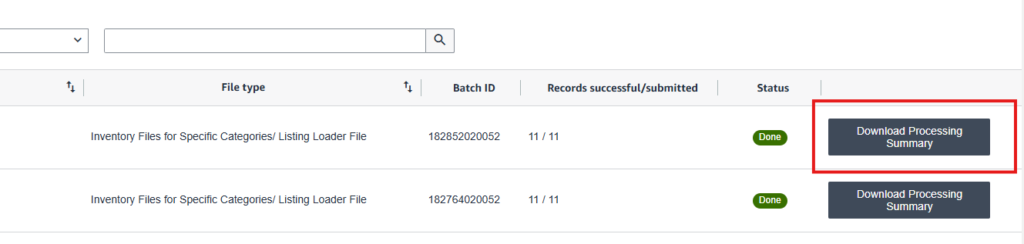
- Monitor the upload status under Spreadsheet Upload Status.
- Download the Processing Report and check the tabs:
- Feed Processing Summary: Provides an overview of the errors.
- Template: Highlights the fields that need fixing.
- Correct the errors in the original flat file and re-upload it.
Tip: If the status says “Records that require further action from you are saved as drafts,” this means certain fields need correction. To resolve the issue:
Conclusion
Creating product variations using flat files may seem complicated at first, but it becomes easier and faster once you get used to the process. Using flat files not only saves time but also reduces errors and makes troubleshooting easier for Amazon support teams.
By following this guide and carefully filling out each section of the flat file, you’ll be able to efficiently create product variations, streamline your inventory, and provide a better shopping experience for your customers.
Embrace the power of flat files to optimize your Amazon listings and grow your business efficiently!
Share:
More Posts

Amazon A+ Content Optimization: The Ultimate Guide to Growing Your Sales
With over 9.7 million sellers on Amazon, standing out from

Amazon Competitor Research: A Complete Guide for Sellers
In the crowded marketplace of Amazon, Amazon competitor research is

How to Use Bulk Operations for Amazon PPC Optimizations
Amazon PPC Bulk Operations is a powerful tool for managing and

Amazon FBA Grade and Resell: Everything You Need to Know
The Amazon FBA Grade and Resell program has emerged as

Amazon’s New Product Title Requirements Effective January 21, 2025: What Sellers Need to Know
Amazon has announced an update to its product title requirements, aiming to

Amazon Account Suspension: 10 Reasons Why It Happens and How to Avoid Them
Amazon account suspension is one of the most challenging setbacks

Protect Your Brand on Amazon: Tips and Strategies for Success
Amazon is the largest online marketplace, offering unparalleled opportunities for

The Best Amazon Advertising Strategies – Lower ACoS, Boost Conversions, and Increase Sales!
Amazon advertising is a game-changer for sellers looking to increase
Send Us A Message
Full Name
Phone
Send
PrevPreviousIs Your Amazon ACoS Really Accurate?
NextAmazon Posts: Boost Your Brand Discovery and Engagement on AmazonNext
[ \
\